
Transcribe Zoom Recording: Quick Ways to Get a Usable Transcript
By the YumiLM Team
If you meet Zoom's cloud-recording requirements, Zoom's built-in audio transcription is the fastest way to transcribe a Zoom recording. No third-party upload, no waiting on another app to process your file. When you don't have that access, downloading the recording and running it through a transcription service or an agentless AI note taker gets you a usable transcript with a bit more legwork.
- Zoom cloud transcription: free with an eligible account, ready shortly after the meeting ends, but locked to specific plan types.
- Upload to a transcription service: works with any recording, gives you more editing control, but adds an upload and processing step.
- Local/agentless AI note taker: captures the meeting as it happens, no cloud dependency, but needs to be running before the call starts.
Key Takeaways
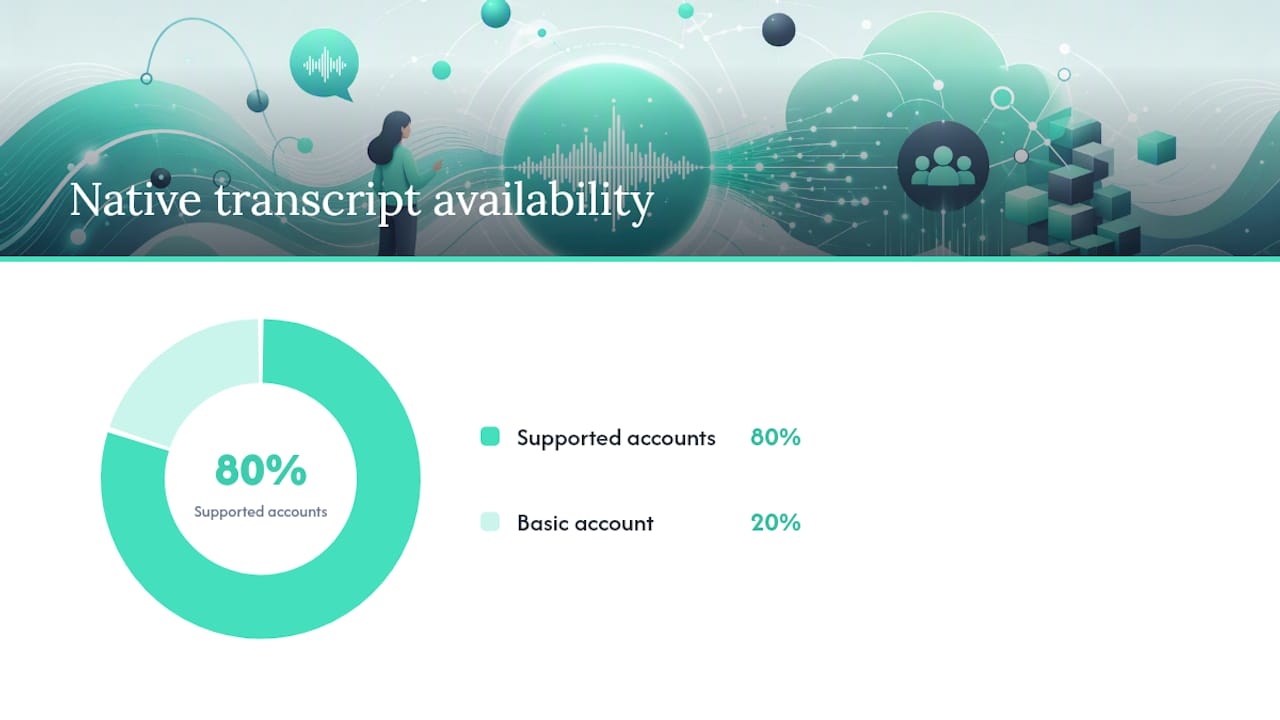
Zoom's built-in cloud transcription is the fastest way to get a usable transcript, but only on Pro, Business, Education, or Enterprise accounts with the right settings enabled.
| Point | Details |
|---|---|
| Check your account type | Zoom's native transcript requires Pro, Business, Education, or Enterprise; Basic accounts can't generate it. |
| Enable settings before the call | An admin must turn on Cloud Recording and Create Audio Transcript in advance. |
| Transcripts arrive as VTT | Zoom saves transcripts as .vtt files you can edit inline, download, or display as captions. |
| No cloud access? Download and upload | Grab the MP4 or audio file and run it through a transcription service instead. |
| Turn transcripts into usable documents | YumiLM converts uploaded Zoom recordings into structured Insight Guides with summaries and key moments. |
Table of Contents
- What You Need to Use Zoom's Built-In Transcript
- How Do You Generate a Transcript From a Zoom Recording?
- How Do You Edit, Search, and Display a Zoom Transcript?
- Simple, Privacy-Minded Workflows When Zoom's Native Transcription Isn't Available
- Best Practices for Better Transcription Accuracy
- When You Want More Than a Verbatim Transcript
- Author Perspective: Quick Recommendation
- Try YumiLM to Convert Zoom Recordings Into Transcripts and Insight Guides
- Sources
- FAQ
What You Need to Use Zoom's Built-In Transcript
Zoom's automatic transcription only works on paid plans. A Basic (free) account can't generate cloud transcripts no matter how the meeting is configured. Plan names and exact settings occasionally change, so confirm current requirements in your own Zoom account or Zoom's official documentation if anything below doesn't match what you see.
- Check your plan. You need Pro, Business, Education, or Enterprise.
- Confirm cloud recording is on. An admin has to enable Cloud Recording under Account Management > Account Settings.
- Turn on the transcript setting. The "Create audio transcript" toggle sits in that same settings panel and has to be switched on before the meeting, not after.
- Make sure you're host or co-host. Recording to the cloud requires that role, plus consent from participants where required.
Pro Tip: If you're joining someone else's meeting and need a transcript, ask the host to enable cloud recording and the transcript setting before you start. Asking after the fact means you're stuck downloading local audio and transcribing it another way.
How Do You Generate a Transcript From a Zoom Recording?
Once your account and settings check out, the process is mostly hands-off.
- Start the meeting and click Record to the Cloud (host or co-host only).
- End the meeting when you're done. Zoom uploads the recording automatically.
- Wait for processing. Zoom emails you when the recording, and separately the transcript, are ready. Processing time scales with meeting length, so a 90-minute call takes noticeably longer than a 15-minute check-in.
- Sign in to the Zoom web portal and go to Recordings & Transcripts.
- Open the recording and click into Cloud Recordings. The audio transcript downloads as a .vtt file, separate from the video.
Along with the transcript, Zoom typically generates:
- An MP4 of the full meeting
- The VTT transcript file
- In some plans, separate audio-only tracks per speaker
From there, you can download the VTT and paste its text into Google Docs or Word for cleanup, or skip the download and edit directly inside the Zoom portal. Both routes work. The portal is faster for small fixes; a word processor is better if you're reformatting the whole thing for a report or study notes.
How Do You Edit, Search, and Display a Zoom Transcript?
The VTT file isn't locked once it's generated. Zoom's own audio transcription documentation covers editing, captions, and multi-language support directly in the portal.
- Edit inline: hover over any line of text in the transcript panel and click the pencil icon to fix a misheard word or relabel a speaker.
- Download and clean up: grab the .vtt file and open it in Word or Google Docs to strip timestamps and reformat it into readable paragraphs.
- Turn it into captions: click the CC icon during playback to display the transcript as closed captions over the recording.
- Change the language: the portal lets you switch the transcript language and reprocess the audio if the first pass used the wrong one.
- Search the text: you can search within a single transcript, and account admins can search across all cloud recordings for a keyword or phrase.
Simple, Privacy-Minded Workflows When Zoom's Native Transcription Isn't Available
Not every account has cloud transcription turned on, and not every meeting gets recorded to the cloud in the first place. When that's the case, you still have solid options.
- Download the recording. Grab the MP4 or the separate audio track from the Zoom portal (or ask the host to send it to you).
- Upload it somewhere that transcribes files directly. Zapier's rundown of Zoom transcription workflows covers this exact pattern: download first, then feed the file into a transcription tool. YumiLM's Upload Transcribe tool works the same way for Zoom exports.
- Or capture the meeting live. An agentless AI note taker running on your device can transcribe the call as it happens, which sidesteps the cloud-recording requirement entirely, as long as the host consents and you're not secretly recording someone else's meeting.
Before you upload anyone's voice to a transcription service, get clear consent. Recording laws vary by state and country, and "I forgot to mention it" isn't a defense if a participant objects later.
Pro Tip: If you're not the host and can't get cloud recording enabled, just ask for the recording after the fact. Most hosts are happy to send an MP4 rather than deal with transcript settings themselves.
Best Practices for Better Transcription Accuracy
Garbage audio in, garbage transcript out. That's true whether Zoom is doing the transcribing or you're feeding a file to another tool.
- Use a real microphone, not a laptop's built-in mic picking up every fan and keyboard click.
- Ask people to mute when they're not talking. Overlapping speech is one of the most common causes of garbled transcript sections.
- Have participants state their names at the start of the call, or use Zoom's participant naming, so speaker labels come out right instead of "Speaker 1, Speaker 2."
- If you're uploading to a third-party service, export at the highest bitrate the platform allows. Compressed, low-quality audio loses the consonants that transcription models rely on.
Pro Tip: Run a two-minute test recording before a long lecture or panel and check the transcript quality first. It's a lot cheaper to fix your mic setup before a 90-minute session than to re-record it.
When You Want More Than a Verbatim Transcript
A raw VTT file is just timestamped text. It's accurate, but nobody wants to read three thousand lines of "um" and cross-talk to find the one decision that got made. That's the gap structured Insight Guides are built to close: instead of a wall of dialogue, you get organized key ideas, examples, and a synthesis that tells you what actually happened.
- Export your Zoom recording as VTT or MP4.
- Import it into a tool that converts raw transcript into structured output, like YumiLM.
- Review the generated summary and timestamped highlights.
- Export as PDF, the editable transcript, or SRT subtitles depending on what you need next.
This works especially well for lectures, research interviews, and recurring meetings where you need minutes, not a transcript dump. A student reviewing a semester of recorded lectures gets far more value from a study guide than from forty raw VTT files.
Author Perspective: Quick Recommendation
Use Zoom's native transcript when speed matters more than polish. It's free, built in, and gives you captions and searchable text with zero setup beyond flipping two account toggles. Reach for an external workflow, or a structured tool like YumiLM, when you need more than a wall of text: key decisions pulled out, a translated version, or notes you can actually study from without rereading the whole call.
Try YumiLM to Convert Zoom Recordings Into Transcripts and Insight Guides
Zoom's native transcript gets you text fast. It doesn't give you a summary, translated subtitles, or a document organized around what actually mattered in the call.
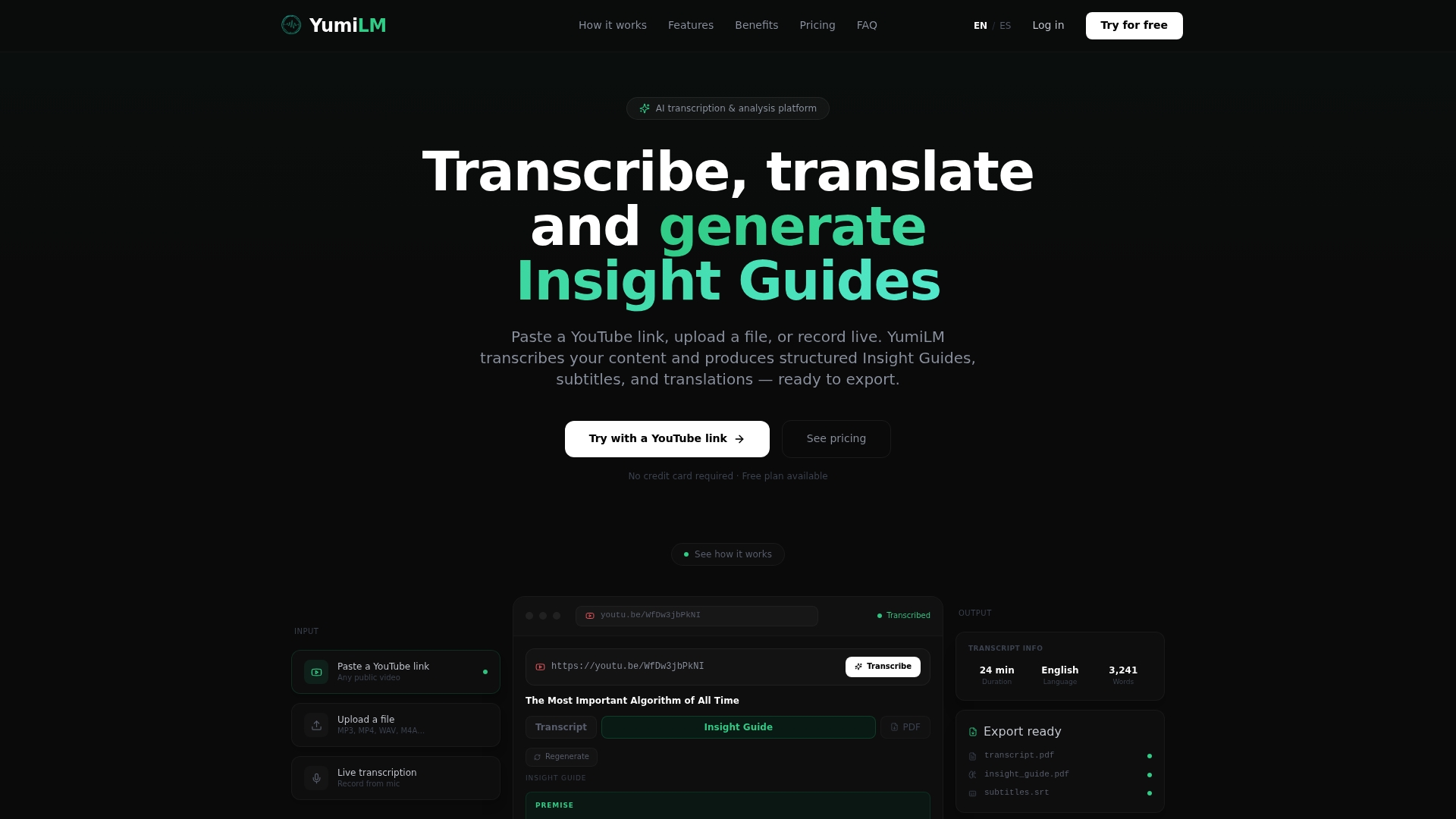
YumiLM picks up where that raw VTT leaves off. Upload your Zoom MP4 or transcript file and get a cleaned-up transcript alongside a structured Insight Guide that pulls out key decisions and timestamped moments, plus translation and PDF export if you need to share it beyond your team. Head to Upload Transcribe with a recent Zoom export and see what a study guide, meeting summary, or research document looks like generated from your own recording. If you record meetings live and want capture without the cloud-recording setup, the Live Transcribe workflow handles that too.
Sources
- Yale AI Tools and Resources | Zoom AI Companion
- View and share cloud recording transcript in Zoom | Illinois State Help
- How to transcribe Zoom meetings | Zapier
Stick to Zoom's own documentation for account and settings questions. Vendor guides are better for workflow ideas once you know what your account can actually do.
FAQ
Can I transcribe a Zoom recording without a paid account? Not through Zoom's built-in feature. That requires Pro, Business, Education, or Enterprise. On a Basic account, download the recording and use an outside transcription tool instead.
How long does Zoom take to generate a transcript? Processing time scales with meeting length. Zoom emails you separately when the video and the transcript are ready, and longer meetings take proportionally longer to process.

Can I change the language of a Zoom transcript after recording? Yes. The Zoom web portal lets you select a different language and reprocess the transcript if the original pass used the wrong one.
What if I'm not the host and need a transcript? Ask the host to enable cloud recording and the transcript setting before the meeting, or request the recording afterward and transcribe it yourself with another tool.
Is a VTT file good enough to share as meeting notes? It's accurate but hard to read as-is, full of timestamps and raw dialogue. Most people convert it into a cleaned-up document or a structured summary before sharing it widely.