
How to Transcribe Large Files Fast Without Losing Accuracy
By the YumiLM Team

If you need to transcribe a long recording, the fastest reliable path is a tool that accepts continuous multi-hour files or can pull audio straight from a URL instead of forcing you through a slow upload. Run the file once, then use a built-in editor to clean up timestamps and speaker labels rather than starting over. That single pass, followed by a targeted edit, beats re-uploading or splitting files into pieces almost every time.
Before you upload anything, check four things: supported file formats, the file-size or duration cap, the expected processing time, and how the service handles your data once it's on their servers. Microsoft's Transcribe feature, for example, caps free Microsoft 365 accounts at 300 uploaded minutes a month, with higher ceilings for Copilot licenses. That's a useful benchmark: if your file blows past a service's stated minutes-per-month or duration limit, you'll want a tool built to handle longer recordings, like YumiLM's paid plans, which accept files up to 2 hours each, before you waste an hour on a failed upload.
Quick action checklist:
- Confirm the format (MP3, WAV, MP4, M4A) is on the tool's supported list
- Check the file-size cap and your account's monthly minute allowance
- Estimate processing time before you commit to a multi-hour file
- Verify privacy settings and where your file gets stored after processing
Key Takeaways
Reliable transcription of large files depends more on upload architecture and output structure than on marginal accuracy gains between competing AI models.
| Point | Details |
|---|---|
| Match the tool to your file size | Check format support, size caps, and monthly minute limits before uploading a multi-hour file. |
| Prepare files before uploading | Convert to MP3 or M4A, keep bitrate between 128 and 192kbps, and avoid unnecessary splitting. |
| Use resumable uploads or URL paste | Avoid browser timeouts on multi-GB files by using resumable uploads or pasting a hosted URL. |
| Spot-check instead of full re-listens | Verify three random segments across a transcript to estimate accuracy without replaying every minute. |
| YumiLM adds structure beyond transcription | YumiLM turns uploads or URLs into transcripts, subtitles, translations, and a structured Insight Guide in one workflow. |
Table of Contents
- What Counts as a Large File for Transcription Tools?
- How to Prepare Large Audio and Video Files for Transcription
- What's the Best Way to Upload Multi-GB Audio and Video Files?
- Fixing Accuracy and Speaker Errors in Long Transcripts
- What Does Transcribing Large Files Actually Cost?
- YumiLM's Workflow for Large Audio and Video Files
- Editorial Perspective: What Actually Matters for Large-File Transcription
- Try YumiLM for Your Next Large-File Transcription Project
- Frequently Asked Questions
- Sources
What Counts as a Large File for Transcription Tools?
Most transcription tools quietly draw the line around 30 to 60 minutes of audio. Anything shorter is "standard." Anything longer, especially multi-hour recordings or files over 1 GB, starts triggering different handling: chunked processing, longer queue times, or outright rejection if the tool wasn't built for it.
Duration isn't the only variable. A two-hour podcast recorded as compressed MP3 might land under 200 MB, while the same two hours as uncompressed WAV can balloon past 1 GB. Bitrate and codec choice affect file size as much as length does, so a "large file" problem is really a size-and-duration problem working together.
Watch for these signals that a file needs special handling:
- Uncompressed WAV recordings over three hours long
- Continuous recordings with no natural break points (all-day conferences, marathon interviews)
- Files already flagged by your device or editing software as "large" before you've even touched a transcription tool
- Multi-track recordings where speaker channels haven't been merged
Services like Vook advertise no duration limit and accept files up to 6 GB, which tells you the ceiling for "large" keeps climbing as processing infrastructure improves. What was unmanageable three years ago is now a Tuesday afternoon upload.
How to Prepare Large Audio and Video Files for Transcription
Preparation determines whether your transcript comes back clean on the first pass or needs heavy editing. Get the format and compression right before you upload, and you'll save yourself an hour of cleanup later.
- Convert to MP3, M4A, or MP4 for upload reliability. These compressed formats upload faster and are accepted almost everywhere. Reserve WAV for cases where you genuinely need studio-grade fidelity, like audio you'll also use for broadcast.
- Set your sample rate to 16kHz or 44.1kHz and keep it mono when possible. Speech transcription doesn't need stereo separation, and mono files are roughly half the size with no accuracy penalty.
- Aim for a bitrate between 128kbps and 192kbps. Lower than that, and background noise starts eating into speech clarity; higher than that, you're just adding file weight without adding accuracy.
- Decide whether to split the file at all. If your tool accepts continuous multi-hour uploads, don't split. Splitting forces you to stitch timestamps back together manually, which introduces more errors than it solves. Split only when a tool's per-file cap forces your hand, and cut at natural silence points, not mid-sentence.
- Name files with speaker, date, and episode context baked in (e.g.,
interview_smith_ep14_030526.mp3), so you're not guessing who's talking three weeks later when you finally sit down to edit.
Pro Tip: Run a 30-second test clip through your chosen tool before uploading the full three-hour file. It catches format or codec issues in under a minute instead of after a 45-minute upload fails.
What's the Best Way to Upload Multi-GB Audio and Video Files?
Browser uploads for multi-GB files fail more often than people expect, usually from timeouts rather than actual file corruption. Community threads on Adobe Podcast document exactly this: users losing progress on long recordings because a browser tab times out mid-upload. Resumable or multipart uploads solve this by breaking the file into chunks that can restart from the last checkpoint instead of from zero.
If your source audio or video already lives online, pasting a URL is almost always faster and more reliable than uploading a local copy. This works well for YouTube lectures, hosted podcast episodes, and webinar recordings pulled from a cloud platform, since the service fetches the file server-side instead of relying on your connection.
For readers processing many large files regularly, batch and API workflows remove the manual bottleneck entirely:
- Keep the browser tab open (or use a resumable-upload tool) during any upload over 500 MB
- Use URL-paste options when the source is already hosted online rather than downloading and re-uploading
- For recurring workloads, look for API or CLI access that lets you queue multiple files and check job status through callbacks
- After upload, spot-check the first two minutes of the transcript against the audio before walking away, catching format mismatches early
Fixing Accuracy and Speaker Errors in Long Transcripts
Accuracy degrades over long recordings for predictable reasons: background noise accumulates, codec compression introduces artifacts, and models sometimes drift as they process hours of continuous speech without a natural reset point. Overlapping speakers, common in interviews and panel discussions, remain the single hardest case for any automated system.

Speaker separation works reliably when voices are distinct in pitch and there's minimal overlap. It breaks down in group conversations with three or more similar-sounding voices, or when people talk over each other. Expect to manually relabel a handful of speaker tags in any recording with more than two participants.
An efficient editing workflow follows this order:
- Search by keyword first, not by scrolling. Jump to specific terms or names rather than reading start to finish.
- Use jump-to-audio on flagged segments to verify only the parts that look uncertain, not the whole transcript.
- Batch-fix repeated errors (a mispronounced name, a technical term) using find-and-replace instead of correcting each instance individually.
- Export corrected captions as SRT or VTT only after the speaker labels and timestamps are finalized, so you're not re-exporting twice.
To estimate accuracy without re-listening to every minute, spot-check three random five-minute segments spread across the beginning, middle, and end of the file. If all three come back clean, the rest of the transcript is statistically likely to hold up.
Pro Tip: Keep a running list of names, acronyms, and jargon specific to your project so you can fix the same misheard term everywhere at once instead of catching it line by line.
What Does Transcribing Large Files Actually Cost?
Pricing for large-file transcription splits into two shapes: per-minute billing (you pay for what you use, good for occasional big files) and monthly minute allowances (better for heavy, recurring use). Mismatching your usage pattern to the wrong pricing model is the most common way people overpay. For the general market price ranges behind these numbers, see What Transcription Really Costs in 2026.
Watch for the difference between account-level minute caps and per-file size caps — they're not the same limit. Microsoft 365's free tier caps you at 300 transcribed minutes per month regardless of how many files you split that across, while a tool like IronMemo caps each individual upload at 2 GB with no monthly metering on its free plan. If you have one enormous file, a generous per-file cap matters more than a monthly minute pool. If you transcribe constantly, the reverse is true.
Processing speed varies by vendor and server load, but a workable benchmark is under one minute of processing per hour of audio for clear recordings, climbing toward real-time for noisier or lower-quality files.
- Occasional big files: prioritize generous per-file size caps over monthly minute pools
- Heavy monthly use: prioritize per-minute pricing or high-minute subscription tiers
- High-volume workflows: look for API access that bypasses browser upload limits entirely
- Compressed uploads consistently process faster than raw WAV, regardless of vendor
YumiLM's Workflow for Large Audio and Video Files
YumiLM handles this exact problem: paste a YouTube link, upload an audio or video file, or record live, and you get a transcript, subtitles, translations, and a structured Insight Guide without juggling three separate tools. Supported formats align with the industry standard set, MP3, WAV, MP4, and M4A, so most existing recordings work without conversion. Paid plans accept files up to 2 hours each (the free tier is capped at 20 minutes), which covers the great majority of lectures, interviews, and podcast episodes without needing to split anything.
The Insight Guide is what separates this from a plain transcript. Feed it a two-hour research lecture and you get organized concepts, key examples, and a final synthesis instead of a wall of text you have to comb through yourself. Feed it a long-form interview or a podcast episode, and it surfaces the moments that matter instead of making you scrub through timestamps manually.
- Upload directly or paste a URL, no separate conversion step required
- Get a transcript, SRT subtitles, translation, and Insight Guide from a single pass
- Export to PDF for sharing with a research team or client
- Manually edit transcript sections without leaving the platform
The gap between a raw transcript and something you can actually use is where most transcription tools stop and where YumiLM starts.
Pro Tip: Run your first large file through the upload workflow before committing to a paid tier, so you can see actual processing time on your own content instead of a vendor's best-case demo.
For readers with recurring enterprise volume, check account limits directly and reach out through support channels before assuming a free tier will cover ongoing work.
Editorial Perspective: What Actually Matters for Large-File Transcription
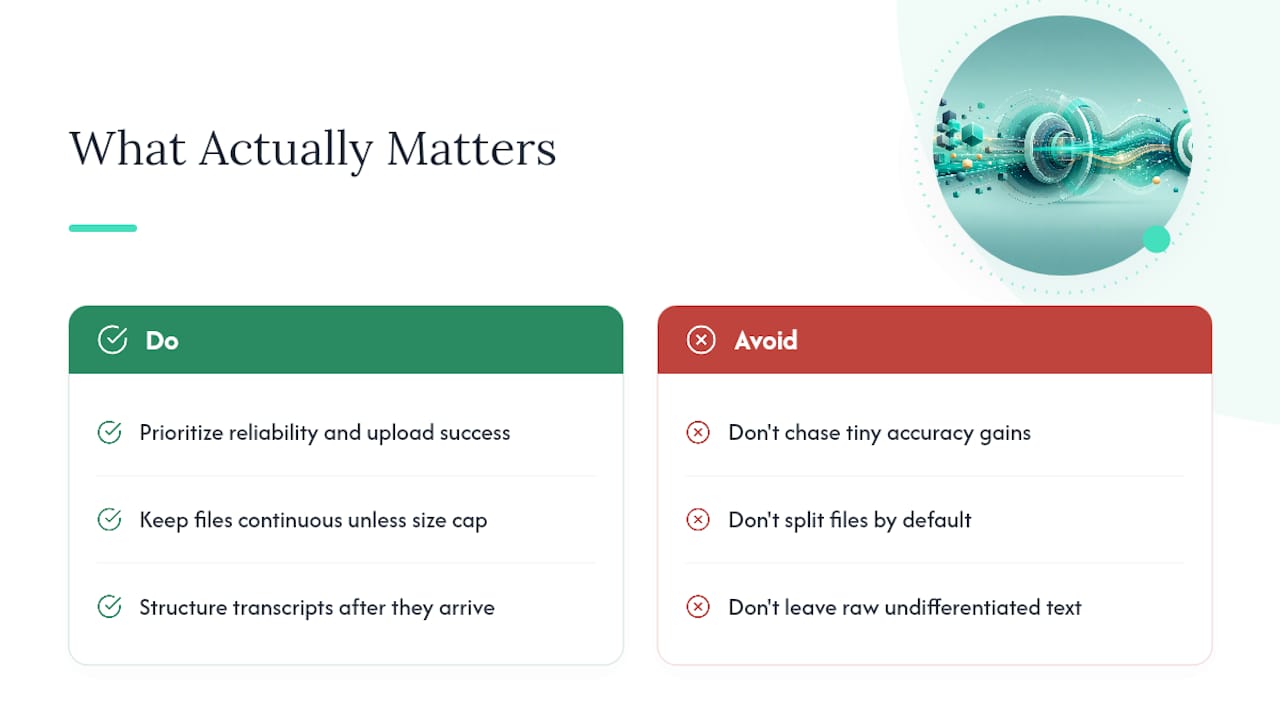
Most advice on this topic obsesses over accuracy percentages and ignores the bigger failure point: uploads that time out or files that never finish processing. A highly accurate transcript you never receive is worthless. Reliability, not marginal accuracy gains, is what determines whether a three-hour recording turns into usable text or a frustrating afternoon.
The conventional wisdom also oversells splitting files as a fix for large-file problems. In practice, splitting creates more work, since you now own the job of stitching timestamps and speaker labels back together across file boundaries. Unless a hard size cap forces it, keep files continuous.
What deserves more attention than it gets: what happens after the transcript lands. A wall of undifferentiated text from a four-hour lecture is barely more useful than the raw audio. Structure, whether that's speaker labels, timestamps, or a synthesized guide, is what turns a transcription job into research you can actually act on. Readers optimizing purely for speed or word-for-word accuracy are solving half the problem.
Try YumiLM for Your Next Large-File Transcription Project
If you've been piecing together a separate transcription tool, a subtitle generator, and a note-taking app to handle one long recording, YumiLM replaces all three with a single upload. You get the transcript, SRT subtitles, a translation if you need one, and a structured Insight Guide from the same file, the same pass, the same platform.
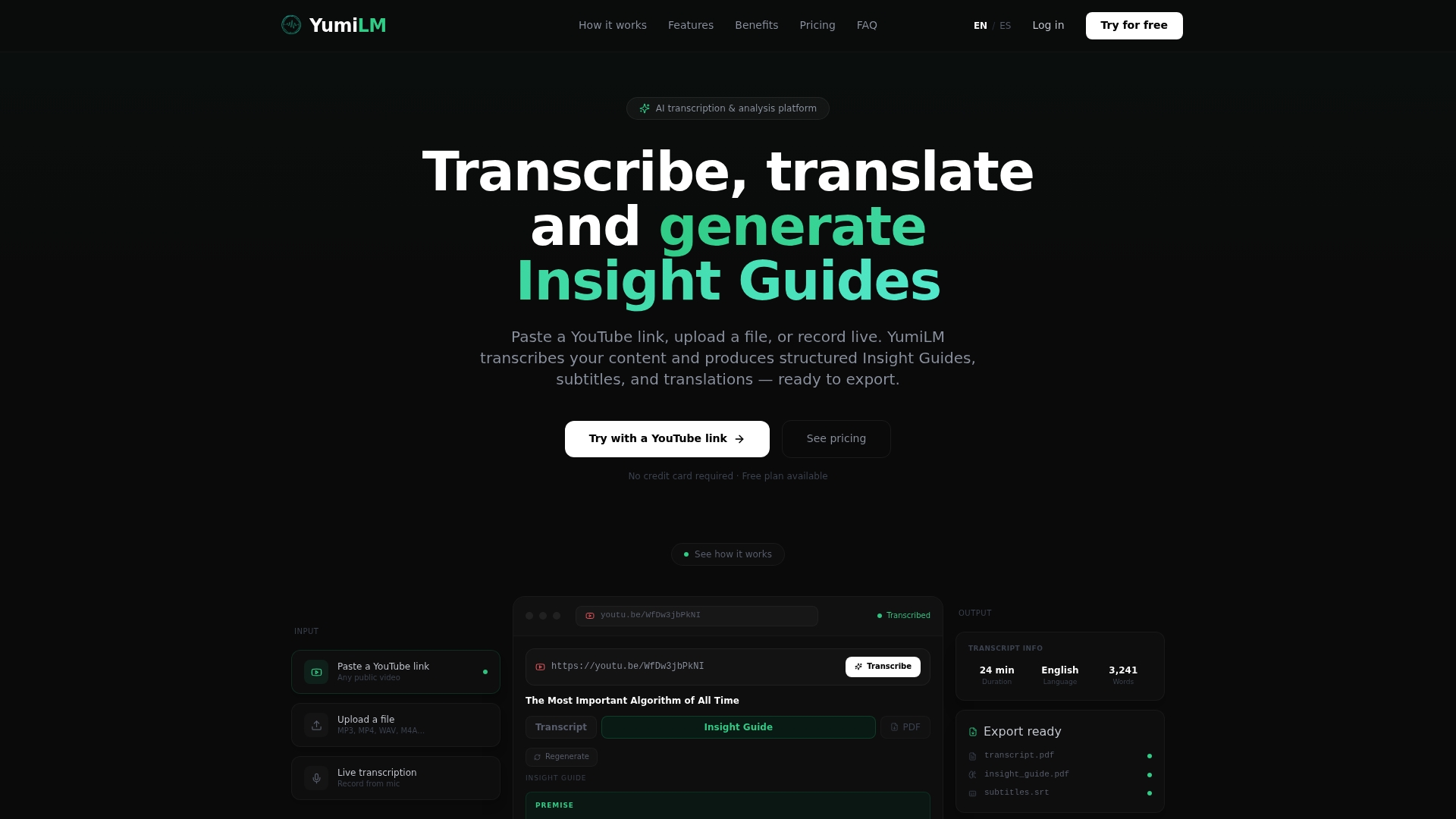
That matters most for the exact files this article covers: multi-hour lectures, long-form interviews, and full podcast episodes where a plain transcript leaves you re-reading everything to find what's useful. The Insight Guide does that sorting for you, organizing key ideas and moments so you're not scrubbing through timestamps by hand. For teams processing files regularly, the live transcription option covers recordings as they happen, while the YouTube paste workflow skips the upload step entirely for anything already hosted online.
Start with the transcription guide to see the full feature set, or upload your next large file directly and see how it handles your specific format and length.
Frequently Asked Questions
What's the largest file size most transcription tools accept? Limits vary widely. Some tools accept files up to 2 GB per upload, others advertise 6 GB with no duration limit. Always check the specific tool's stated cap before starting a long upload. YumiLM caps by duration rather than file size: up to 2 hours per file on paid plans, 20 minutes on the free tier.
Do I need to split a multi-hour recording before transcribing it? Not unless the tool enforces a per-file size or duration cap. Splitting adds manual work reassembling timestamps and speaker labels later, so keep files continuous when possible.
How long does it take to transcribe a three-hour audio file? Processing speed varies by vendor, but under one minute of processing per hour of clear audio is achievable with some services. Noisy recordings or heavy background sound can push that closer to real-time.
What export formats should I expect from a large-file transcription tool? Look for at least plain-text and SRT/VTT support, plus PDF export if you need to share a finished document with a team or client.
Does compressing my audio file hurt transcription accuracy? Not if you stay within a reasonable range. A bitrate between 128kbps and 192kbps preserves speech clarity while cutting file size roughly in half compared to uncompressed WAV.
Sources
Microsoft Transcribe support covers supported formats and account minute limits.
Adobe Podcast community discussions cover upload reliability for long recordings.